Using the Seed Data JSON property in the OmniScript Setup section, you can prefill OmniScript fields with data or add hidden nodes to the OmniScript Data JSON. When using static values that are seeded during the initial loading of the OmniScript, the Seed Data JSON attribute should be used.
Below are the steps to add data in Seed Data Jason property :
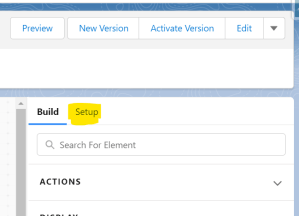
Step 1 : Once you created an Omniscript then click on Setup.
Step 2 : In the Setup section scroll down a little and you can see Seed Data Jason property.

Step 3 : In the left text field, type the element’s name to prefill it.
Step 4 : Enter the desired value of the element in the right text field.
Step 5 : If the element has multiple responses, such as a multi-select, you can prefill more than one value by separating the entries with a semicolon.
Step 6 : When the user runs the script, the static values from the Script Configurations are stored in the elements specified in the Seed Data JSON section.
Step 7 : Additionally, you can add hidden nodes to the OmniScript’s Data JSON by using the Seed Data JSON parameter.For example, you may want the OmniScript to create a Case with Type, Status, and Origin defined in the Data JSON of the OmniScript.
Hope this information helps you guys.
Cheers!!!
Mukul Sharma
 vlocitysfdc.com