Using OmniStudio Document Generation, you have the capability to design Microsoft Word and PowerPoint templates that streamline document generation to help teams with document generation. These templates can be tailored to match the complexity level needed to enhance your business operations. These templates offer the flexibility to incorporate standard, conditional, and dynamic elements. Consequently, when an end user generates a new document based on the template, a significant portion of the content is automatically populated, leading to time-saving benefits.
When initiating a document generation system, the initial step involves crafting your document templates.
Let’s have a look at the steps for creating a document template.
Step : 1 In the Lightning App Launcher, type files into the search box. Under Items, select Files and then Libraries.

Step : 2 To download the file Quote Document Template V1, click the Download button. Open the document and replace the fields with the variable token shown below.
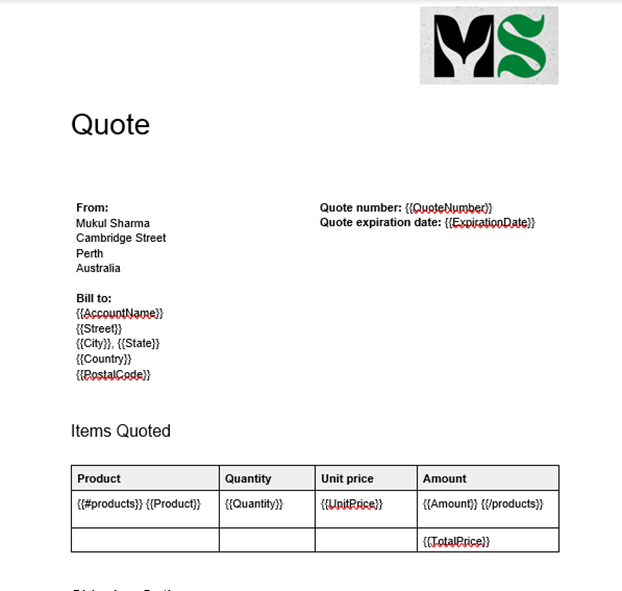
Step : 3 Enter OmniStudio Document Generation in the search box of the Lightning App Launcher. Navigate to OmniStudio Document Generation. To create a new document template, click New in the upper right corner. Make sure to upload the document template.
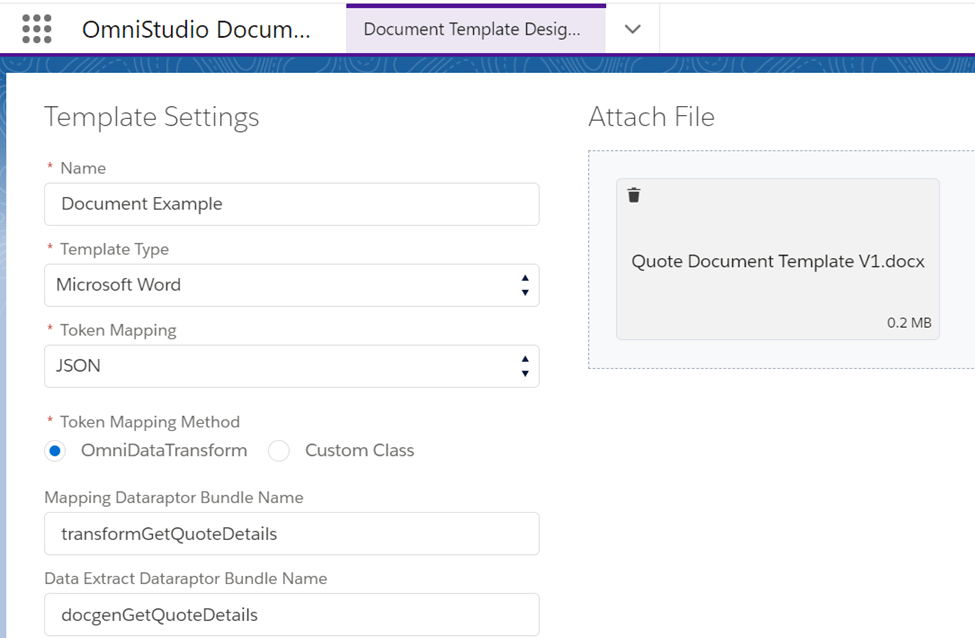
Step : 4 After creating the document template, we can use it in the omniscript to generate a quote.

Note : To display product line items, use the repeating content token {{#products}}. The items on the line will be repeated. It will display the product name, quantity, unit price, and subtotal for each line. To close the tag, type {{/products}}.
A token in a template is a placeholder that maps input data for dynamic generation. You can embed various types of tokens in.docx and.pptx templates, such as variables, repeating content, and condition evaluations.
| Token Name | Description |
| Variable | The value of a variable passed into the template as a JSON element is displayed. |
| Repeating content | Repeats a content section |
| Condition evaluation | Checks a Boolean condition to determine whether to display a section only once or not at all. |
| Image | Insert a dynamic image |
| Rich Text | Use this to insert rich text |
| Hyperlink | Use this to insert a dynamic URL |
Note : Only client-side document generation supports image, rich text, and hyperlink token types.
Hope this information helps you guys.
Cheers!!!
Mukul Sharma
 vlocitysfdc.com