Context Rules in Salesforce Industries CPQ are a powerful way to control the applicability of products, promotions, and discounts based on business conditions.
In a previous post, we walked through a complete scenario to show a promotion only for new customers, using context rules:
https://vlocitysfdc.com/2023/11/12/scenario-to-show-promotion-only-for-new-customers/
However, there are situations where even after correct configuration, the rule does not work as expected and no error is shown in the UI.
This post focuses on the most common root causes for such scenarios and the additional configurations that must be verified at the org level.
Root Cause 1: Incorrect Interface Implementation
Salesforce Industries CPQ relies on interface-based implementations to evaluate product and promotion availability.
If the correct implementation class is not active, context rules will silently fail.
What to Verify
- Navigate to Interface Implementations
- Open ProductAvailabilityOpenInterface
- Check the Active Implementation Class
Expected Configuration
- Active Implementation Class:
CtxRulesProductsOpenImplementation
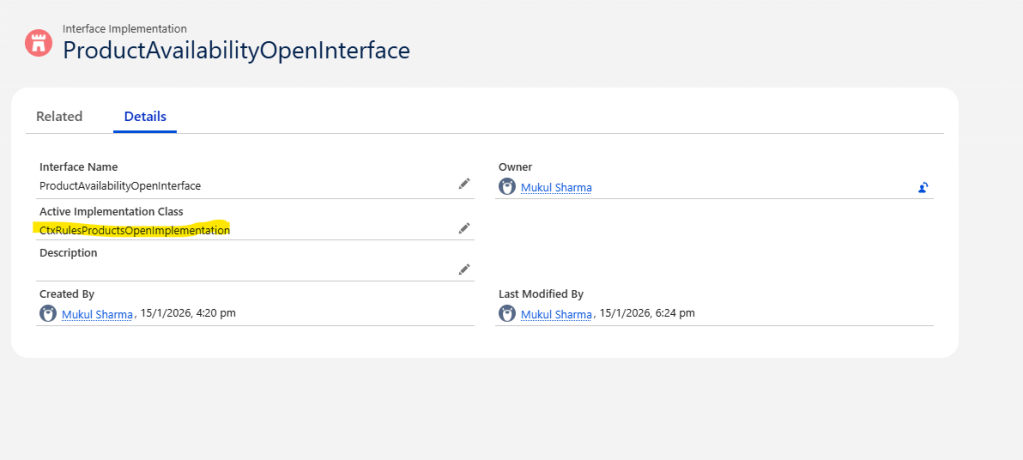
If a different implementation is active:
- Change the Active Implementation Class to
CtxRulesProductsOpenImplementation - Save the configuration
This implementation is required for context rules to be evaluated during product and promotion availability checks.
Root Cause 2: Context Rules Disabled in CPQ Configuration
Even with correct rules and interface implementation, context rules will not execute if they are disabled at the CPQ configuration level.
What to Verify
- Navigate to Vlocity CMT Administration
- Open CPQ Configuration Setup
- Search for the parameter:
ContextRulesEnabled
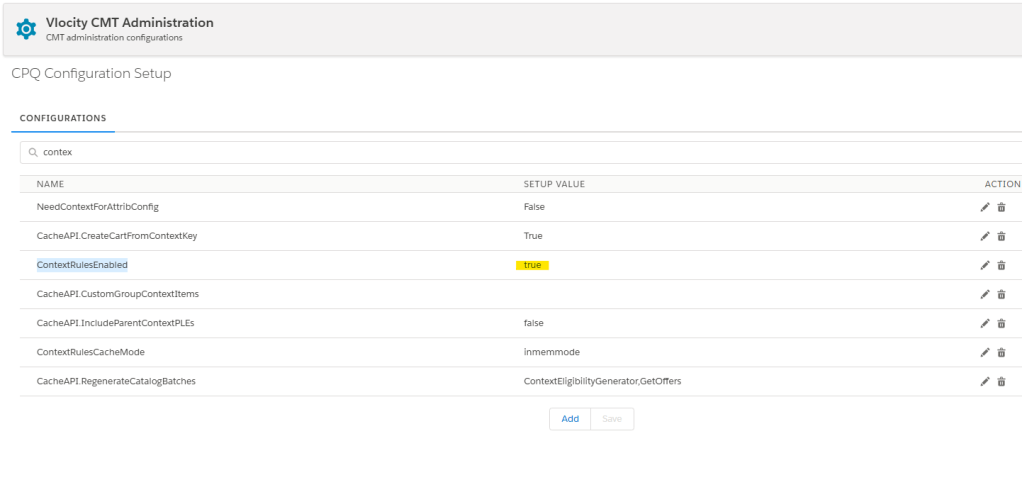
Expected Configuration
- ContextRulesEnabled = True
If the value is set to False, update it to True and save.
Stay tuned for upcoming posts, where we will explore additional real-world use case scenarios commonly encountered during project implementations.
Cheers!!!
Mukul Sharma
 vlocitysfdc.com