Field Mapper is used in asset-based ordering to move data between opportunities, orders, quotes, and assets.
Field Mapper maps fields from one object to another to move it between objects. Salesforce provides a base set of field mappings as part of the Salesforce Industries Communications, Media, and Energy package.
Any additional fields that are required must be mapped to and from the following objects:
- Opportunity to Quote
- Quote to Order
- Order to Asset
- Asset to Quote Line Item
- Asset to Order Product
- Opportunity Product to Quote Line Item
- Quote Line Item to Order Product
By running the Field Maps Maintenance job, you can clear the default field mappings. Let’s delve into Field Maps Maintenance job further to uncover any additional insights and nuances.
Field Maps Maintenance job : This job deletes any custom field mappings, so before running it, make a note of any mappings you’ve added or edited so that you can restore them after the next Salesforce Industries Communications upgrade.
| Where to Run This Job | CMT Administration tab |
| Risks of Running This Job | High risk: Completely removes existing field mappings and restores the default mappings. |
| When Not to Run This Job | Do not run the Field Maps Maintenance job on any environment without proper planning. Never run the Field Maps Maintenance job on live production environments. |
| When to Run This Job | After planning and documenting existing field mappings To restore or recreate default field mappings After upgrades that introduce new fields to map On development or test environments, and then on production environments, but not on live production environments |
Now let’s have a look on how to map fields for asset-based ordering:
- Go to the Field Mapper tab.
- From the Source Object picklist, select Opportunity.
- From the Destination Object picklist, select Quote.

img source: Salesforce
4. Click Load Settings.
The fields on the left are from the source object, Opportunity. The fields on the right correspond to the fields in the destination object—Quote. The specific fields you see are determined by how your organisation is configured. To map a field from an opportunity to a quote, select the fields to map from the Opportunity list on the left and the field from the Quote list on the right.
5. Click Add.
6.In the Fields Map list, click Select. The Field Selection dialog box opens.
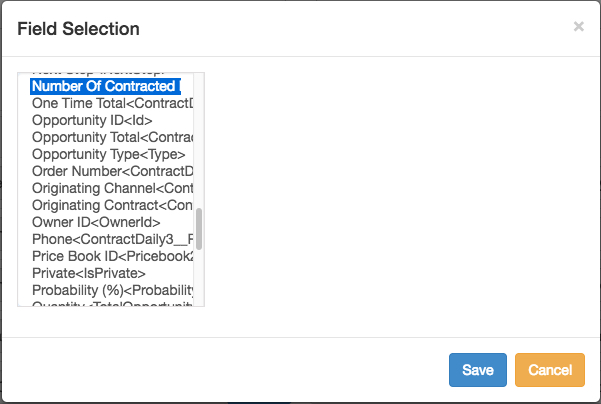
img source: Salesforce
7. Select the appropriate field. The option you select in the first column may expose more columns.
8. Continue to select the appropriate fields.
9. Repeat steps 5 through 8 for each field to map.
10. When you are done mapping fields, click Save.
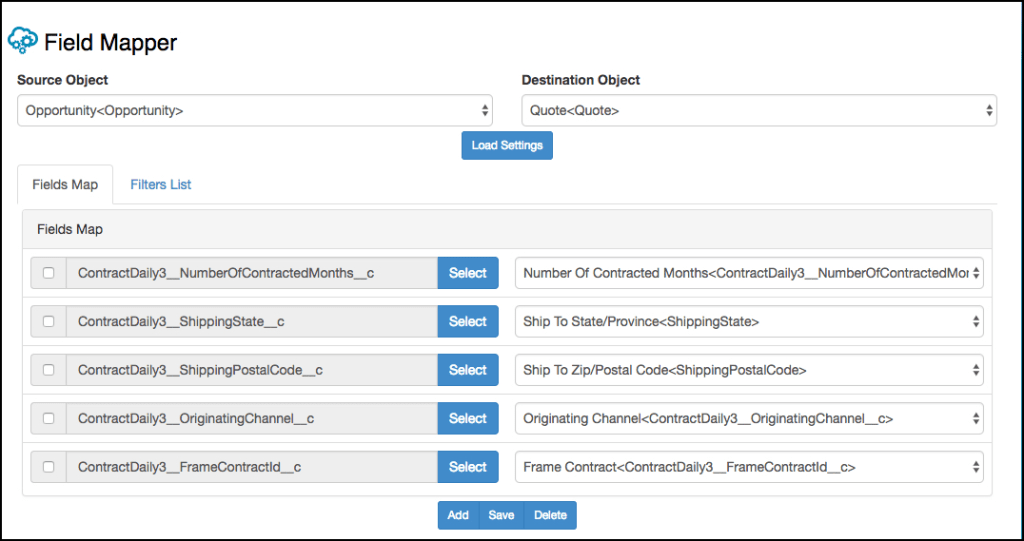
img source: Salesforce
11. From the Source Object picklist, select Quote.
12. From the Destination Object picklist, select Order.
Continue this procedure until you have mapped all of the object fields.
Stay tuned for the next post, where we’ll dive deeper about Mapping Objects for Asset-Based Ordering!
Hope this information helps you guys.
Cheers!!!
Mukul Sharma
 vlocitysfdc.com