Have you ever encountered the error i.e. “Import Error No Configuration Found“. If yes then this might be a useful post for you to resolve this error in your Salesforce Vlocity Org.
Error : “Import Error No Configuration Found” OR “No Object Class found for object: Product2“
Possible Reason : This might happen in a Salesforce org if no EPC jobs have been executed yet.
Solution : One of the possible solutions to resolve this error is mentioned below. You can follow the steps to resolve it.
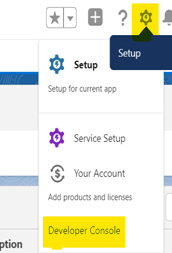
Step 1 : On the top right corner you can see the Setup icon, Click on it & open the Developer console from there.
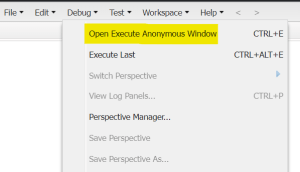
Step 2 : In the Developer console, Open Execute Anonymous Window from the Debug section.
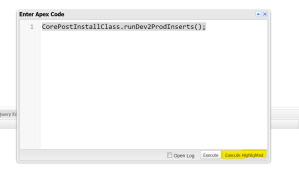
Step 3 : In Enter Apex Code window, write the following code ” CorePostInstallClass.runDev2ProdInserts(); “
Step 4 : Select the code and click on the Execute Highlighted button.
Step 5 : Exit from the Developer Console.
Step 6 : Once we execute the above mentioned code from the Anonymous window, the next step is to Run the “EPC Create Default Objects and Layouts” or “Install Default Objects and Layouts” job . To do this, perform the further mentioned steps.
Step 7 : Click on the app launcher and search for Vlocity CMT Administration.
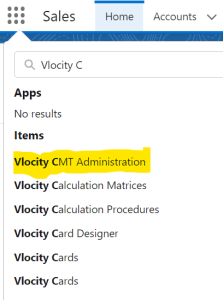
Step 8 : Click on Vlocity CMT Administration and open the CMT Administration Configuration window.
Step 9 : From Admin Console section click on EPC Jobs.
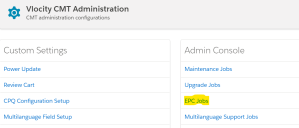
Step 10 : Run the “EPC Create Default Objects and Layouts” or “Install Default Vlocity Objects and Layouts” job.
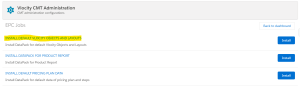
Bingo!! you shouldn’t be getting this error now.
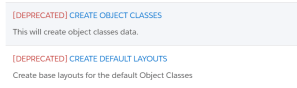
Note : CREATE OBJECT CLASSES and CREATE DEFAULT LAYOUTS Jobs have been DEPRECATED now.
Hope this information helps you guys.
Cheers!!!
Mukul Sharma
 vlocitysfdc.com